Home Audio is Out of Sync With Video
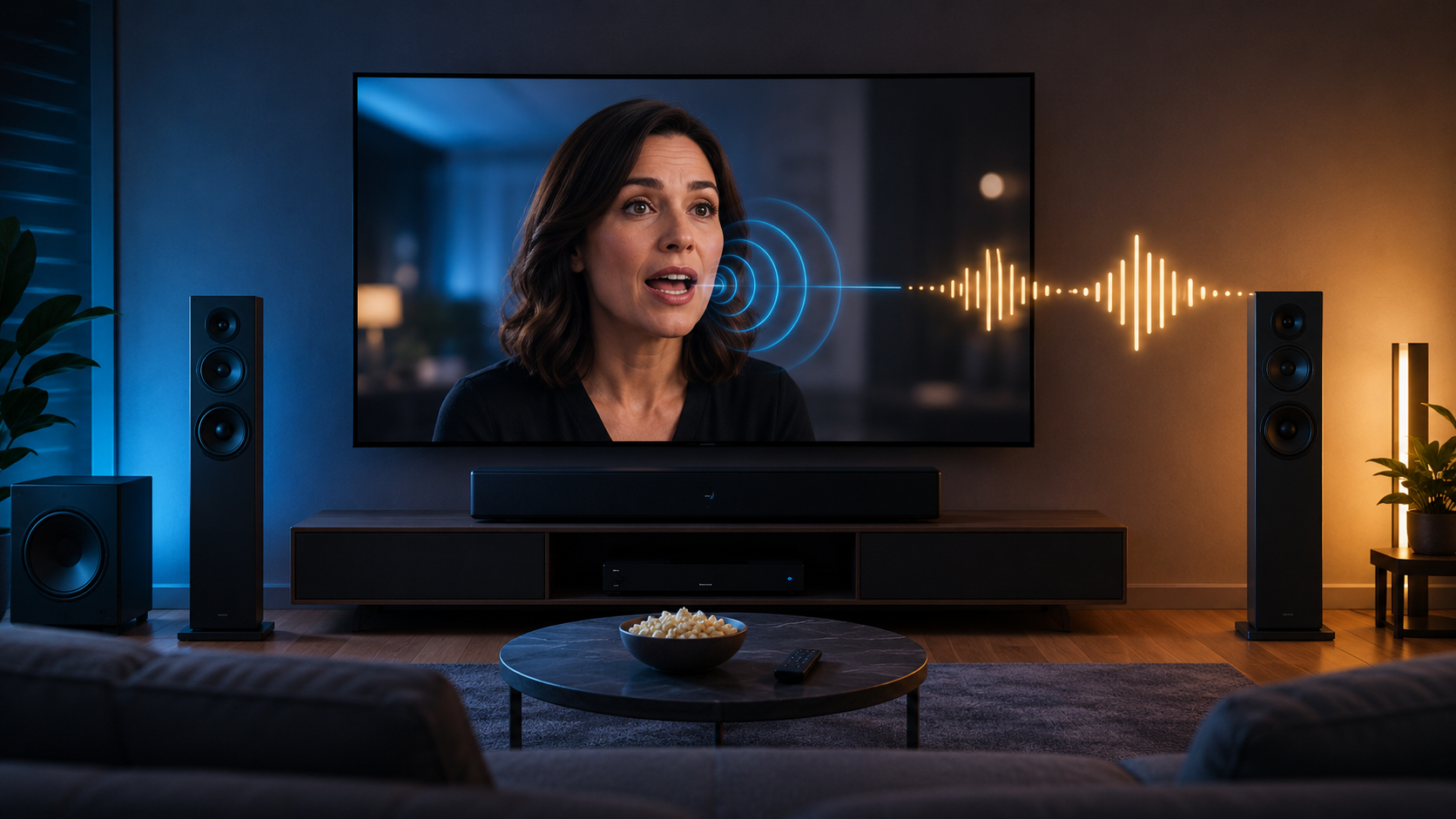
This issue occurs when the audio and video are out of sync in a home theater setup.
Recommended troubleshooting accessories
If your issue involves failing cables, adapters, power delivery, or AV accessories, this Amazon search may help you find compatible troubleshooting equipment.
As an Amazon Associate, AV Knowledge may earn from qualifying purchases.The Issue
This issue occurs when the audio and video are out of sync in a home theater setup.
Common Symptoms
- Audio does not match the video on screen.
- Voices may play slightly before or after a person’s mouth moves.
- Dialogue feels delayed during movies or TV shows.
- Sound effects happen too early or too late.
- Audio sync is worse when using a soundbar or AV receiver.
- The issue only happens with certain apps, devices, or HDMI inputs.
- The problem appears after changing TV, receiver, or streaming device settings.
- Game audio feels delayed compared to controller input.
Equipment Involved
- TV or projector
- AV receiver
- Soundbar
- Streaming device such as Roku, Apple TV, Fire TV, or Chromecast
- Blu-ray player
- Game console
- HDMI cables
- eARC or ARC connection
- Optical audio cable
- Surround sound speakers
- Subwoofer
- TV apps such as Netflix, Hulu, Disney+, YouTube, or Max
Possible Causes
-TV video processing features adding delay
- Soundbar or receiver audio processing adding delay
- Incorrect lip-sync or audio delay settings
- HDMI ARC or eARC communication issues
- Streaming app playback problems
- Poor HDMI cable connection
- Outdated firmware on the TV, receiver, or soundbar
- Mismatched audio format settings
- Using optical audio instead of HDMI ARC or eARC
- Game mode being turned off while gaming
- Bluetooth audio latency
Steps to Resolve
Step 1
Turn off the TV, soundbar or receiver, and source device. Unplug them from power for about 60 seconds, then plug them back in.
Step 2
Check if the issue happens on every source
Step 3
Look for audio delay settings in your TV, soundbar, or AV receiver menu.
Step 4
On the TV, disable unnecessary picture processing features, such as: - Motion smoothing - Noise reduction - Dynamic contrast - Extra sharpness processing - AI picture enhancement
Step 5
If the issue happens while gaming, turn on Game Mode on the TV.
Step 6
If you are using a soundbar or AV receiver through HDMI ARC or eARC, confirm that the TV and audio device are both using the correct mode.
Step 7
In your TV or streaming device audio settings, try changing the output format.
Prevention
- Keep TV, soundbar, receiver, and streaming devices updated.
- Use certified HDMI cables.
- Avoid unnecessary video processing features.
- Use HDMI eARC when available.
- Keep audio format settings consistent.
- Use Game Mode when gaming.
- Avoid Bluetooth for home theater playback.
- Label HDMI inputs so each device stays connected correctly.
- Restart the system after major setting changes.
Notes / Warnings
Audio sync issues are common in home theater setups because TVs, receivers, soundbars, and streaming devices all process signals differently.
If the issue only happens in one streaming app, the app or specific video may be the problem. Try another movie, show, or app before changing the entire system setup.
If the problem started after adding a new soundbar, receiver, or HDMI device, focus troubleshooting on that device first.
For best results, use HDMI eARC when possible and keep the TV’s picture processing simple.
Still need help?
Ask a Query in the Community and include your equipment, symptoms, and what you have already tried.

Comments (0)
Log in to join the discussion.
Log inNo comments yet. Be the first to start the discussion.