Resolving “No Signal” on Crestron DM-NVX
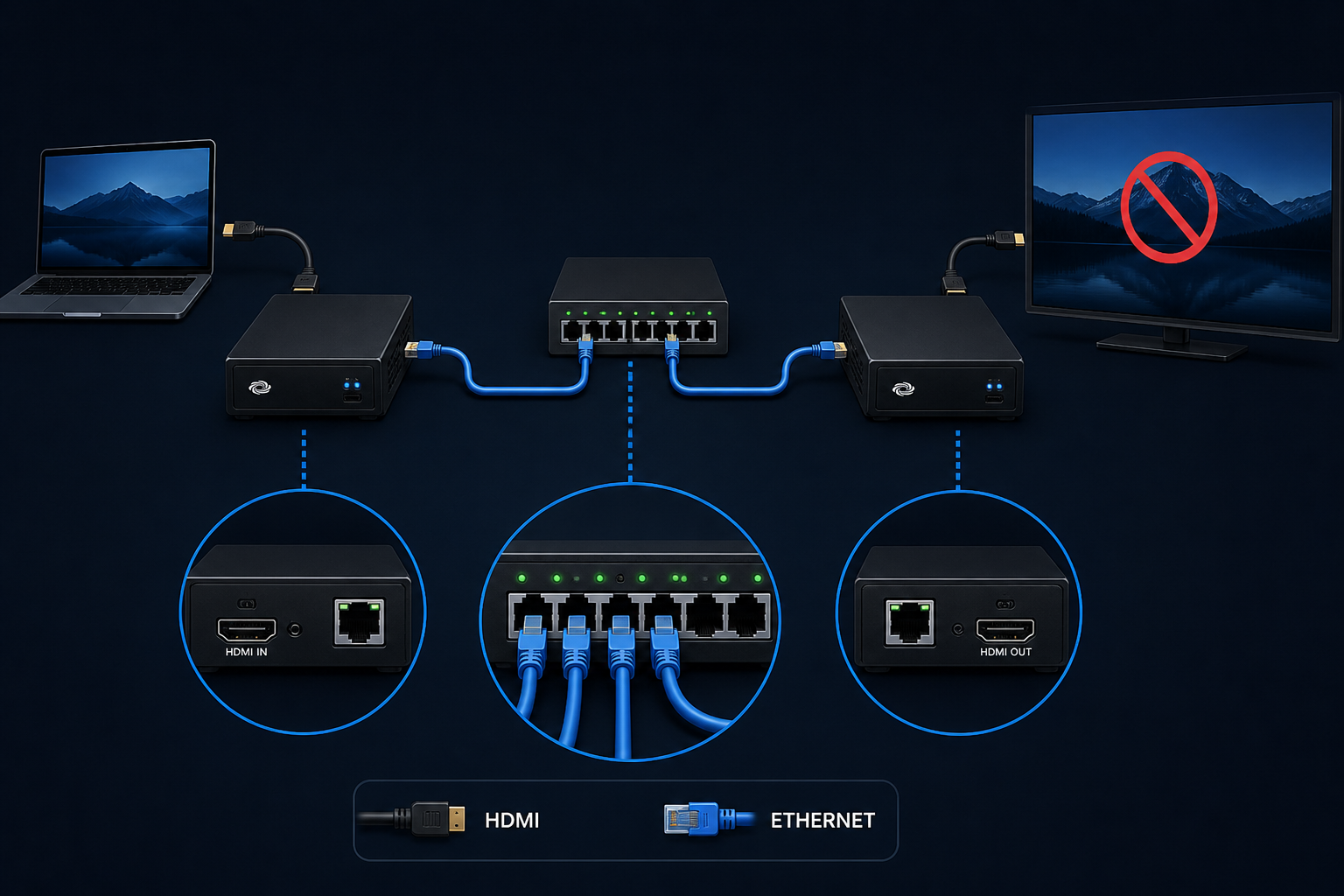
A display connected through a Crestron DM-NVX system shows “No Signal” even though the source device is powered on. This can happen when the transmitter and receiver are not communicating correctly, the wrong input or output is selected, network connectivity is interrupted, HDCP/EDID negotiation fails, or the display/source device is using an unsupported resolution or refresh rate.
Recommended troubleshooting accessories
If your issue involves failing cables, adapters, power delivery, or AV accessories, this Amazon search may help you find compatible troubleshooting equipment.
As an Amazon Associate, AV Knowledge may earn from qualifying purchases.The Issue
A display connected through a Crestron DM-NVX system shows “No Signal” even though the source device is powered on. This can happen when the transmitter and receiver are not communicating correctly, the wrong input or output is selected, network connectivity is interrupted, HDCP/EDID negotiation fails, or the display/source device is using an unsupported resolution or refresh rate.
Common Symptoms
Equipment Involved
Possible Causes
Steps to Resolve
Step 1
Verify that the source device, DM-NVX encoder, DM-NVX decoder, network switch, and display are all powered on.
Step 2
Confirm the display is set to the correct HDMI input.
Step 3
Check that the HDMI cable from the source to the DM-NVX encoder is firmly connected.
Step 4
Check that the HDMI cable from the DM-NVX decoder to the display is firmly connected.
Step 5
Test both HDMI cables with a known working source and display to rule out cable failure.
Step 6
Confirm the encoder and decoder are online and visible in Crestron Toolbox, XiO Cloud, or the system’s control interface.
Step 7
Verify that the correct encoder stream is routed to the correct decoder.
Step 8
Check the network switch ports for active link lights on both the encoder and decoder.
Step 9
Confirm that the DM-NVX devices are on the correct VLAN or network segment.
Step 10
Power cycle the source, display, encoder, and decoder.
Step 11
Check the source resolution and refresh rate. Set it to a common supported format such as 1080p at 60 Hz for testing.
Step 12
Verify EDID settings and try applying a known-good EDID profile.
Step 13
Check HDCP settings if the source is protected content, such as a cable box or streaming device.
Step 14
Update DM-NVX firmware if the devices are running outdated versions.
Step 15
If the signal still fails, swap the encoder or decoder with a known working unit to isolate whether hardware is the issue.
Prevention
Notes / Warnings
Still need help?
Ask a Query in the Community and include your equipment, symptoms, and what you have already tried.
Comments (1)
Log in to join the discussion.
Log in

Interesting read.