
Projector Shows Image but Looks Blurry or Out of Focus
The projector powers on and displays an image, but the picture appears blurry, soft, or unevenly focused. Text may be difficult to read, edges may look fuzzy, or only part of the image may appear sharp. This is commonly caused by lens focus, incorrect throw distance, dirty optics, keystone distortion, low source resolution, or projector alignment issues.
Recommended troubleshooting accessories
If your issue involves failing cables, adapters, power delivery, or AV accessories, this Amazon search may help you find compatible troubleshooting equipment.
As an Amazon Associate, AV Knowledge may earn from qualifying purchases.The Issue
The projector powers on and displays an image, but the picture appears blurry, soft, or unevenly focused. Text may be difficult to read, edges may look fuzzy, or only part of the image may appear sharp. This is commonly caused by lens focus, incorrect throw distance, dirty optics, keystone distortion, low source resolution, or projector alignment issues.
Common Symptoms
- Text on slides is hard to read.
- The center of the image is sharp, but corners are blurry.
- One side of the image looks more focused than the other.
- The image looks soft even after adjusting focus.
- The projector image appears stretched, warped, or distorted.
- HDMI source looks lower quality than expected.
- Focus changes after the projector warms up.
Equipment Involved
- Text on slides is hard to read.
- The center of the image is sharp, but corners are blurry.
- One side of the image looks more focused than the other.
- The image looks soft even after adjusting focus.
- The projector image appears stretched, warped, or distorted.
- HDMI source looks lower quality than expected.
- Focus changes after the projector warms up.
Possible Causes
The most common cause is that the projector lens is simply out of focus, but blurry images can also happen when the projector is too close or too far from the screen. Heavy keystone correction can soften the image because the projector is digitally reshaping the picture. A dirty lens, incorrect source resolution, poor screen surface, or misaligned projector mount can also cause focus problems.
Steps to Resolve
Step 1
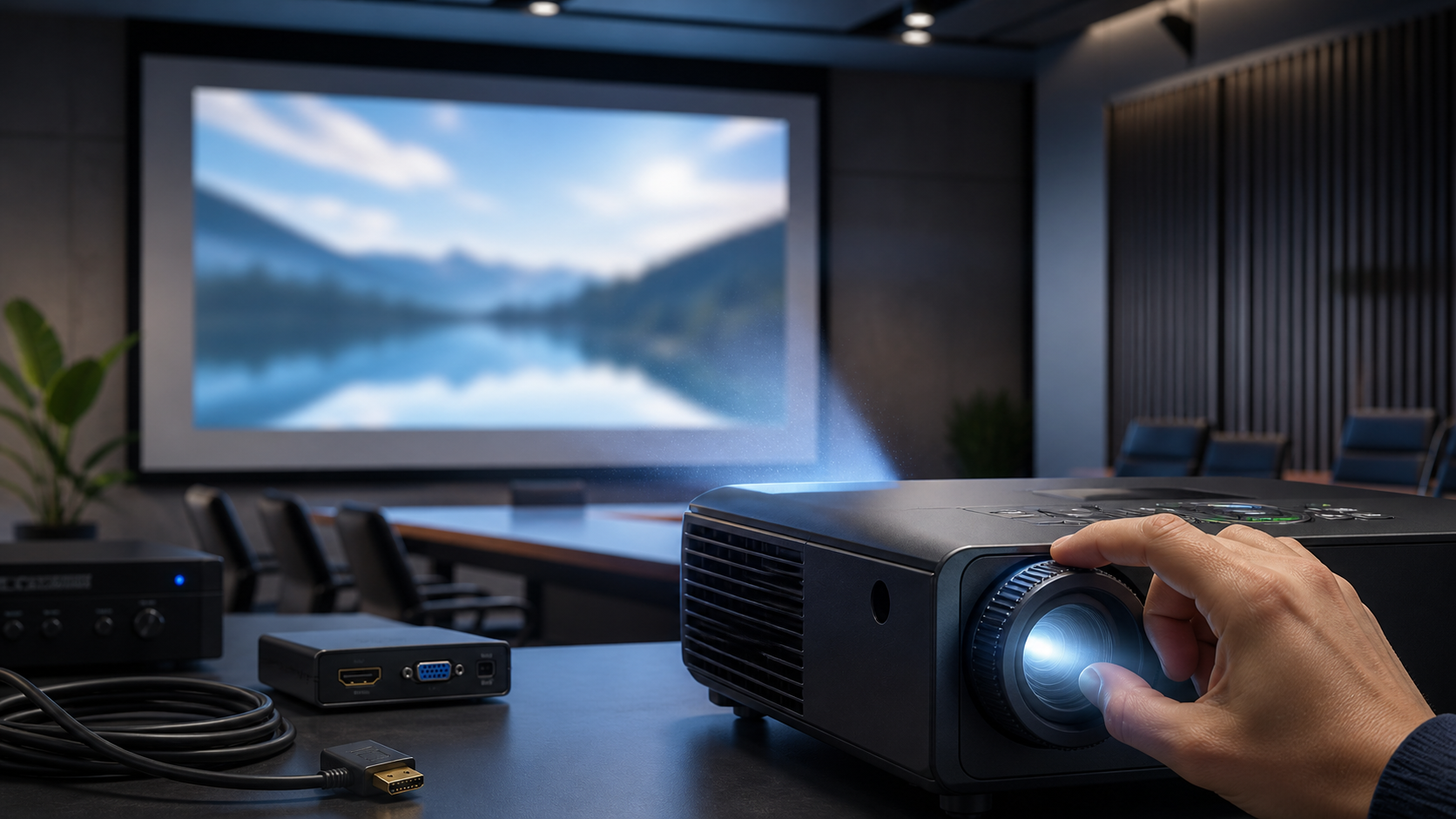
Adjust the focus ring or remote focus control
Step 2
Display a slide with large text or a test pattern. Slowly adjust the projector focus until the center of the image appears sharp.
Step 3
Check the projector distance from the screen
Step 4
Confirm the projector is within the manufacturer’s recommended throw distance. If it is too close or too far away, the lens may not be able to focus correctly.
Step 5
Check the projector distance from the screen
Step 6
Confirm the projector is within the manufacturer’s recommended throw distance. If it is too close or too far away, the lens may not be able to focus correctly.
Step 7
Clean the lens carefully
Step 8
Use a microfiber lens cloth. Do not use paper towels, harsh cleaners, or excessive pressure. Dust or smudges on the lens can make the image look soft.
Step 9
Match the source resolution to the projector
Step 10
On the laptop or source device, set the output resolution to match the projector’s native resolution, such as 1920×1080 or 3840×2160.
Step 11
Check the screen or projection surface
Step 12
Make sure the image is landing on a flat, clean screen. Textured walls or uneven screens can make the image appear blurry even when the projector is focused.
Step 13
Inspect the mount alignment
Step 14
If one side of the image is blurry, the projector may be angled. Level the projector and make sure it is square to the screen.
Step 15
Restart the projector and source device
Step 16
Power cycle the projector and source device, then test again. This can clear handshake or scaling issues.
Prevention
Install the projector within the recommended throw range and align it physically with the screen before using keystone correction. Keep the lens clean, use the projector’s native resolution when possible, and periodically check mount stability. For permanent installations, document the correct resolution, input source, and focus settings.
Notes / Warnings
Do not clean the lens with abrasive materials or liquid cleaner sprayed directly onto the projector. If the projector is ceiling-mounted, use proper ladder safety and avoid adjusting the mount while the projector is hot.
Still need help?
Ask a Query in the Community and include your equipment, symptoms, and what you have already tried.

Comments (0)
Log in to join the discussion.
Log inNo comments yet. Be the first to start the discussion.